Friday, 13 September 2013

Microsoft Office 2010 Starter Edition needing activation

Many version of Windows 7 came with this completely free edition of Office which was only limited on features but not time.

However an Windows update on Tuesday (10th September 2013) has caused users to be prompted to purchase the full version of Office when trying to open Word or Excel documents:

Activate office

Fortunately there is a simple solution, not involving parting with any money to Microsoft. You’ll need to uninstall Microsoft Office 2010. Click on the Start orb at the bottom left of the screen, and type add remove. Click on Add or remove programs as below:

add remove

Next click on Microsoft Office 2010 and uninstall:

uninstall program

You should then be able to run Word and Excel as before.

If you’re using Microsoft Office 2010 Starter Edition and have not yet been effected, this is the update you need to watch out for (KB2589275). So you could also un-tick the update before it causes any trouble. Or you could uninstall the update, but I prefer the above method.

Update to Microsoft Office 2010 (KB2589275) 32-bit Edition

Please let me know how you get on!

Wednesday, 11 September 2013

Syncing Google Calendar with your Android phone or tablet

By default, synching your calendar from your Android phone doesn’t always work as it should. Often calendar updates will only happen one way – from Google Calendar on your desktop to your phone or tablet, but not the other way around. To get them working both ways make sure you complete the following steps. Note that Android devices vary so the screenshots may not look exactly like yours –these are taken from an Asus Fonepad.

Open up the device’s calendar app and click on settings.

image

If you don’t already have your Gmail account here, you’ll need to add it. Then we need to select this account and enable it to be synched by checking the tick box:

SNAGHTML149f8a9e

image

image

Next click on this calendar as below:

image

Now when you add an event, make sure this same calendar is selected as below:

image

You’ll now find calendar events will sync both ways. Good luck!

Tuesday, 3 September 2013

Sharing bookmarks across all your devices with iCloud and troubleshooting

Setting up iCloud Bookmarks Synching

This is very handy feature using Apple's iCloud, but can be frustrating when it doesn't work as it should. I'll firstly go through how to enable the feature and then describe how to deal with any issues that can arise. Bookmarks sync works across iOS devices (iPhone and iPads), Macs and PCs. To enable the feature on your iPhone and iPad, simply slide the switch in Settings / iCloud to on:

IMG_4254 iphone enable icloud

On your Mac, select System Preferences / iCloud and tick Safari:

2013-09-02_22-52-57 macbook icloud enable

On your PC, you'll need to download the iCloud control panel from here:

http://support.apple.com/kb/dl1455

After installing, you're need to enable Bookmarks with Internet Explorer. If you have Safari installed, you'll have an option to sync with Safari bookmarks instead. With Safari installed, Reading Lists are also synched. Note that iCloud Tabs are only synched across Apple devices.

That's it - all your bookmarks should sync across all your devices.

Troubleshooting iCloud Bookmarks (Advanced)

This normally works fine, but synching across many devices with hundreds of bookmarks can get iCloud in a muddle. Duplicates can appear and you may have to resort to resetting your bookmarks across all devices. This is easier said than done since there is no way of explicitly removing the iCloud bookmarks.

This is the procedure I've found to work - and I've tried a few ways! Please remember, it's unlikely you'll run into any problems. I'm probably pushing this feature to its limits synching across 6 devices with bookmarks going back over 15 years!

Firstly switch off synching on your iPhone and iPad: as above but slide the switch to off. You'll be prompted to delete the bookmarks stored. Confirm this operation:
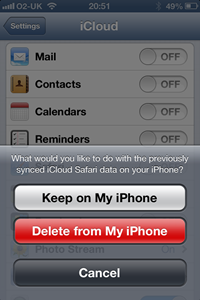
IMG_4253 iphone delete bookmarks icloud

Now turn off on your PC(s) too. Then delete all your favourites (bookmarks) too. For Internet Explorer:

Windows Key + R and type %userprofile%\favorites as below:

02-09-2013 21-00-29 delete favorites

Now select all folders and files and delete. Or copy to a temporary folder if you need a backup to restore at the end of this procedure. 

Finally on the Mac, again make a backup of your bookmarks if you're wanting to restore from them. Then with iCloud Safari sync still enabled, delete all your bookmarks (Show All Bookmarks and hold the delete key down is one way!). Wait for this to propagate through to iCloud - leave 15 minutes if possible. Then exit Safari and turn off iCloud sync as above and completely delete bookmarks by deleting the bookmarks.plist file as below. In Finder you'll need to hold down the alt key to see the hidden Library folder:

2013-09-02_21-19-58 delete plist bookmarks safari

Now enable iCloud Safari sync again and open Safari. Wait a while and check no bookmarks still left in iCloud don't reappear.

This next step is important if you’re using Windows 8. You need to turn off Internet Explorer syncing, which is part of your Microsoft login. This is not an issue if you logon on to a local account. Here’s how to switch it off:

SNAGHTML7982dda

Now restore your bookmarks and enable iCloud sync on your other devices. If you're not using a Mac, you'd complete this final step on the PC. But do it on one PC first.

Good luck and please let me know how you get on!

Friday, 7 December 2012

Gadget Show Live Christmas

The train just about made it to London with all the recent flooding causing havoc. Most of my fellow travellers were heading to Twickenham for what was to be the astonishing English defeat of New Zealand.

I was heading for the new Gadget Show Christmas exhibition at the Excel centre. Their annual show at the NEC obviously wasn't enough for true tech addicts. It's a smaller show but I found for the limited time I had, it was big enough!

I was keen to see the new Windows 8 and all its associated gadgets. Microsoft had the biggest stand at the show unsurprisingly, with their latest Surface tablet taking centre stage. They had the latest smartphones, hybrid laptops, ultrabooks and of course XBox all sporting some variant of Windows 8 and all with a reassuringly consistent feel.

Surface had a queue just to touch and feel it which must be very satisfying for Microsoft. These are the new tablets running Windows RT, a special version of Windows 8 designed to run on mobile devices. But it feels exactly the same as the full Windows 8 and runs very quickly with no delays flicking, scrolling or pinching! It comes with Microsoft Office 2013 which is a real bonus. Plus it will support many USB devices, so you can plug you USB memory stick in and continue working on that Word document you started on the laptop.


You will have seen all the Surface adverts with enthusiastic dancers attaching and the detaching the cover/keyboard. The tablet comes on its own from £399, or with a choice of two cover/keyboards. One thin keyboard (with no feedback but available in lots of colours). And one thicker keyboard in black with proper keys which would be my choice. The attachment mechanism is very nicely designed and the built in stand on the back of the tablet is well thought out. With this built in stand, proper keyboard and Microsoft Office, this really is a tablet that could comfortably replace your laptop in many situations.

Microsoft also had a number of interesting full Windows 8 hybrid laptop with flipping, swiveling and rotating screens, mostly with touch. I did find the range a little baffling and would like Microsoft to set some guidelines. Windows 8 does work a lot better with a touch screen or at the very least an advanced touchpad which supports the main touch gestures. However, some budget laptops have no touchscreen and limited touchpads which leaves you having to use the rather unintuitive mouse and keyboard controls.

The Asus Taichi had a double-sided screen which when closed acted as an (albeit fat) touchscreen tablet. Open it up and you had a standard laptop with no touch which I found myself contantly trying to touch!

The Windows Phone 8 smartphones were very appealing with their large bright and very responsive displays. Kids Corner is a nice feature that lets your children safely play with your phone with your choice of apps. But it doesn't stop it being slung across the room!

Moving on from the Microsoft stand and running out of time, I enjoyed a nice demonstration of a 3D printer from MakerBot. These are really coming down in price (£1500 + VAT) and I can see them being available at high street prices within 5 years.

I dashed around the rest of the show pausing to look at Sonos Wireless HiFi, Jacuzzis (!), far too many smartphone and tablet covers and loads of flying gadgets, before heading off home with hoards of drunken rugby fans.


Tuesday, 9 October 2012

Tablets rule the world ...

Finally the price of tablets have come down - something we've all been wanting to happen for a while now. Although it's mainly the smaller 7" tablets that we're seeing for under £200. There have been many cheap and rather nasty tablets until fairly recently, with the sudden glut of impressive 7" offerings from Samsung, Google (Asus) and Amazon.

The Google Nexus 7" was the first tablet that really caught my eye. £159 for the 8GB version with a fast quad-core processor and an HD screen. But sadly no expandable memory slot and no rear camera (of arguable usefulness). And then, just recently, Amazon announced their new Kindle Fire and higher resolution Kindle Fire HD, £129 and £159 respectively, available in the UK this time at the end of October. These appear to be great value but again lack expandable storage or a rear facing camera. More importantly these devices are mainly for consuming ebook and video content from Amazon. Although they can be used as a general purpose tablet, you'll have to live with Amazon trying to sell its wares at any available opportunity.

And finally we have the Samsung Galaxy Tab 7 which has expandable memory via MicroSD and a rear facing camera albeit only 3MP all for just under £200. But it has a lower 1024x600 resolution than the Nexus or Kindle Fire HD and a slightly outdated processor.

But the biggest factor for all these devices, for me at least, is the screen size. If you're already using a decent smartphone, with a 3.5 to 4.3" screen, I'm not convinced the extra screen size of a 7" tablet is enough. I still find myself having to zoom in on most webpages, online newspapers and magazines.

However it all depends how and where you'll use a tablet. For reading books and watching video content on the move, the 7" tablet makes a lot of sense and has already proved very popular. And the general downward trend is pricing can only be a good thing. Let's just hope we see some decent sub-£200 10" tablets soon.


Wednesday, 26 October 2011

The London International Technology Show (LITS) 2011

This new consumer technology show run by Dennis publishing looked promising, so I joined numerous tech-lovers at the Excel centre in London on Saturday.

Arriving at the exhibition centre brought back slightly nervous memories: the last time I'd been there in my previous life at BT, I had the rather onerous responsibility of preparing a demonstrator of our research activities for senior BT managers including the chief executive!

This time there was no such pressures and I walked into the hall to be greeted by two chaps walking around in their underpants. Regardless of the fact that 99% of the attendees were male this seemed a strange publicity stunt!

The main stand greeting new arrivals was from Scan (an online computer component retailer) and this typified the focus of the show - gaming. Which for me was slightly disappointing since there was nothing new here. They had an overclocking tutorial for people trying to eke out the last drop of power from their gaming PC.

Walking past the Zotac stand I was asked to guess how much a gaming chair cost for a nice little LED torch. Despite several wrong attempts I was still awarded the torch with a correct guess of £10,000! The torch kept my children occupied for some time, but of course are no match for our LED torches!

The custom PC builder Yoyotech has their latest and greatest machines on display and were demonstrating extreme overclocking keeping everything cool with liquid nitrogen:


They also had the exact machine used in the Gadget Show's Battlefield 3 simulator.

There was still lots of 3D TV and gaming with Samsung demonstrating their latest monstrous 3D TV. But not much else from Samsung unfortunately. Not even their latest tablets. And not much from the other big vendors either.

All in all I'm afraid the show was a little disappointing. But this was the first LITS and these type of shows need to gain a little momentum. Hopefully next year will be better ...

Tuesday, 14 June 2011

Protect yourself from fake anti-virus programs

Most people have anti-virus software on their computer. And this keeps a lot of the popular types of viruses at bay. But one of the most common virus infections we see in the shop, rarely gets detected by your Norton or McAfee and can also con you out of £50.

This new breed of virus uses a variety of methods to trick you into downloading a piece of software. Once you allow this program to install, it takes over your machine and effectively holds your computer to ransom until you "activate" it for around £50. Of course if you do hand over the money, the crooks also have your credit card details and to make matters worse you are still infected!

In our latest video, we show a live infection of a Windows 7 machine with a very popular and typical version of this rogue security software called Security Shield. We show how you can avoid getting infected in the first place and how you can try and remove the virus yourselves. We also show how using Malware Bytes Pro Edition available from The Technology Company, together with your usual virus guard will prevent future infections in the majority of cases.