Saturday, 23 May 2015

Beware of the Cryptowall Virus

Unfortunately there is a new incarnation of the original Cryptolocker virus doing the rounds. It even nastier than ever so we’d suggest following some of our suggestions below.

If you get the following screen (or similar), unfortunately it’s too late – all your files would have already been encrypted (see above link) and in most cases unrecoverable. You’d need to turn to your back up if you have one.

Cryptolocker_virus

But for most of us lucky ones, it’s better to not get infected in the first place. The virus comes along in the form of an email with a ZIP attachment. So be very wary about opening any attachments you don’t trust. Make sure your virus protection is up to date. We’d suggest also suggest running the Premium version of Malwarebytes alongside your general anti-virus. Also it’s crucial you have a backup of your machine – ideally you’ll want a backup that takes a snapshot at a regular interval.

The above steps in most cases should be enough safety precautions but if you want to take your protection a step further there is a free utility that specifically prevents you from picking up the virus called CryptoPrevent. We’ve not tried this but it is well-regarded.

Wednesday, 6 May 2015

How to fix your hijacked web browser

The first sign that your browser has been hijacked is a change to your normal homepage. Typically you’ll also start seeing ad pop-ups on your screen, and your machine can start to slow down. You may also be unable to browse to certain web pages.

Depending on how severe the hijack is, you may be able to fix the issue yourself. Resetting your browser can remove basic browser hijacks. To do this in Internet Explorer, click on the Tools cog then Internet options and the Advanced tab:SNAGHTML5a0d351

Click Reset, ensure the Delete personal settings is enabled and confirm the reset.

SNAGHTML5ad06f9

When you restart Internet Explorer you’ll need to restore your homepage. Visit the page you’d like to load when you first open your browser. Then click Tools cog and Internet options as above (1, 2) and click Use current and then Ok:

image

If the above doesn’t work for you, you may have a nastier infection which I’ll try and cover in a future post.

Tuesday, 14 October 2014

Problems updating Malwarebytes Premium

Malwarebytes Premium will usually update itself without any issues but if you find you do have a problem, usually after an update, our best recommendation is to uninstall and then reinstall the program.

image

Don’t worry if you can’t find your license key since the program will remember it when you reinstall.

You can uninstall the program from Add Remove Programs or just type Malwarebytes from Search in Windows 8 or after clicking the Windows Orb in Windows 7.

image

You’ll probably be prompted to reboot the system. After the reboot visit http://www.ninite.com/malwarebytes to reinstall the software and everything will be working as it should:

image

Thursday, 25 September 2014

Return of the Cryptolocker virus

image
Last year we warned of a nasty virus that encrypted all your files and then charged you to decrypt the files. We haven’t seen this for a while but unfortunately it’s back in a slightly different form and is referred to by the anti-virus community as Torrentlocker – although it still calls itself Cryptolocker.

It may just be possible for us to recover your files and clean off the virus, depending on which version of the virus you have. Please turn the computer off and bring the machine into us if you see any message like the one above.

But the best thing is not to get infected in the first place! Make sure your anti-virus software is up to date and for added security consider Malwarebytes Pro.

This customer’s laptop we had in yesterday got infected from an email link which I captured below:

image

The link is purporting to be from Royal Mail and alerts you to a parcel delivery you missed. All looks very genuine.

If you click on the link, you get the message below:

image

Do not open the email or click on the “view information” link – delete the email immediately.

For your benefit and our curiosity we did follow this link in a safe, sandboxed environment. You can see what transpires in the video I’ve quickly put together below (easier to see full screen):

Wednesday, 10 September 2014

All you need to know about passwords

password login

Passwords have always been a source of frustration but it’s worse than ever now with the average user having to remember at least 10 web logins. And gone are the days where you could use the name of your first pet or your mother’s maiden name. I used to shudder when a website asked me to change my password – to something I’d not used before!

And rarely can you get away with just adding an extra digit. More likely you’ll have to capitalise a letter or add a symbol which makes the password you’ve had for years instantly forgettable!

It’s best to come up with a password yourself rather than appending various characters and digits to an existing old password. This is very hard to remember.

Choosing a strong password

ttc-password-post-it-150262

My advice is to try and use a strong password for your important online accounts like email and online banking. It’s painful but these need to be different. For your other sites like clothing stores for example, just ensure the password you use is different to the one used for your important accounts.

But how do you choose a strong password and how do you remember it? Dealing with the latter first, there’s nothing wrong with writing it down but try and keep it in a secret place!

One idea for a secure password is to choose a phrase that only you know and adding a capital letter and number. You can include spaces in this.

For example: It was sunny when I got married in 2002.

You can check how well you’ve done by using Microsoft’s password checker:

https://www.microsoft.com/security/pc-security/password-checker.aspx

Password managers

Personally I use a password manager which is software that runs on my computers, smartphone and tablet and relies on a very secure master password. It can then generate and remember random secure passwords for all your web logins and will encrypt these with your master password. It’s very convenient too since the software bookmarks your favourite sites and will automatically direct you to the site and log you in. I’ve used a program called Roboform for almost 8 years and can recommend it – in fact I’d be in trouble without it!

Keep your security information up to date

SNAGHTML96a334

As a final note it’s also important to setup your password recovery options, especially with your email accounts. If you get locked out, this offers a way of getting back into your account. For a Hotmail account, visit https://account.live.com and click Edit Security Info. You can also turn on 2-way authentication for Hotmail and Gmail which reduces the chance of your account getting hijacked. I use this now with the free Google Authenticator smartphone app. This links your phone to your account and gives you an additional pin number or token that changes regularly but can be read straight off your phone.

Saturday, 16 November 2013

How to setup parental controls in Windows 8

Parental controls keep your children safer online and can also limit their computer use.

Most recent versions of Windows come with these controls or you can download them for free.

In the video below I show how to setup Microsoft Family Safety in Windows 8. I also show how you can use an alternative free program called K9 Web Protection if you prefer or if you’re using a different version of Windows (XP, Vista, 7) or a Mac.

Of you’d like to watch the video at a larger size click the YouTube link towards the bottom right of the player:

How to setup parental controls in Windows 8 using Microsoft Family Safety

At a minimum we’d recommend adding an additional user account for the children as in the video above (or looks at the steps below). This standard account has limited privileges and even on its own provides some protection.

Type user from Start menu and select Add, delete and manage other user accounts:

image

Select add an account:

image

And create the child’s account:

image

You can tick the checkbox below if you’d like to continue to configure Family Safety as in the video above:

image

Wednesday, 6 November 2013

The Gadget Show @ Christmas 2013

A little early for Christmas perhaps (barely November) and I’m not sure about the @ sign, but I eagerly joined thousands of other tech lovers at a change of venue this year: London’s Earls Court.

The journey up from Devon was fairly smooth apart from a 90 minute delay at a kink in the line! Lots of fake snow (it’s Christmas) and huge SONOS adverts lined the entry corridor and I set off on my usual Drunkard’s walk around the venue. Earls Court was fairly easy to navigate and I quickly spotted a few areas of interest.

sonos with inset play1

First off: the SONOS stand of course. There was lots of excitement over their latest addition to the family: the PLAY:1. A fantastic little speaker that has a sound that belies its size and at only £169 by far the least expensive entry into the world of Wireless HiFi that is SONOS.

On to the Microsoft stand where the latest laptops, hybrids (half tablet, half PC) and tablets were showing off Microsoft’s latest 8.1 release of Windows.The Start button is finally (sort of) back and performance has been improved. Their own Microsoft Surface Pro 2 was everywhere. This is a fully fledged Windows 8.1 computer with a fast Quad-Core i5 processor and SSD but in tablet form. There is an optional add on keyboard that clips on magnetically. It also comes with a pressure sensitive stylus which makes it very attractive to illustrators and budding artists.

If you’re undecided between a tablet and a new powerful and lightweight laptop – this could be for you! It’s a little on the heavy side and slightly more bulky than I’d like, but they’ve improved the battery life and the kickstand. The all-day battery life, making use of the latest Intel Haswell processor, is more than acceptable. And the new kickstand means that with the optional keyboard it can be used comfortably on your lap.

Vernon from Extreme Fliers with their new Micro Drone 2.0

I had to visit Vernon on the Extreme Fliers stand. He was skilfully showing off the new Micro Drone 2.0 Quadrocopter which has the option of an on-board camera. See my full review of the Quadrocopter here.

I’m always looking for new gadgets for the shop and the Jackpen caught my eye. Basically a minute ballpoint pen that fits in the headphone socket of your phone! I think this is a genuinely useful idea and we should be getting some in for Christmas …

image

More toys that caught my eye were the inflatable remote control Star Wars characters – I know my children would love them!

Remote control inflatables

I didn’t quite know what to make of Narrative, a clip-on camera that takes a photo every 30 seconds. They call it lifelogging technology and the small device has a 5 megapixel camera (of iPhone 4 quality) and integrated GPS. Much of the innovation is in the supporting software which attempts to identify useful shots from thousands of mainly uninteresting ones! It uses location, changes in contrast and time to do this but I imagine you’ll still have to sort through a lot of rubbish. You can also tap the device to force a picture to be taken.

image

I was surprised at the price at over £200 and an additional charge for the hosting of your pictures. Not really a casual purchase at that price but I’m sure they’ll have takers!

image

Half of the show was dedicated to gaming, with the new (to be released this month) PlayStation 4 and Xbox One taking centre stage and the centre of the hall staging a massive Minecraft competition.

Thursday, 17 October 2013

Warning of serious CryptoLocker virus

We’ve seen one of the nastiest viruses we’ve ever encountered in the shop this week, called CryptoLocker. After the infection, the virus encrypts all your documents and photos. It then demands a payment of up to 300 Euros to decrypt the files, which needs to be acted on within a time limit after which decryption will no longer be available:

image

The bad news is this isn’t the usual scare-mongering we often see with so-called Ransomware. The virus has genuinely encrypted the files and there really is no way to unscramble your data without paying the fee which we wouldn’t recommend and has of course no guarantees! If you do get the virus, disconnect your Internet connection to prevent further files becoming encrypted.

The virus is relatively easy to remove but your files will still be unusable. You will have to rely on a backup, or the slim possibility of a little known feature of some versions of Windows called Shadow Copy.

According to Sophos, a security software company, the virus is spread via email or botnets. Botnets exist on already infected machines and allow further viruses and malware to be attached, so it’s vitally important that you have your virus protection up to date and we’d suggest running a full scan of Malwarebytes as well. Our recommendation would also be to have Malwarebytes Pro active on your machine for real-time malware protection.

The video below from Sophos shows the virus in action:

Please do give us a call on 01822 618544 if you have any concerns.

Tuesday, 8 October 2013

Review and video of the Micro Drone 2.0 Quadrocopter with on-board camera from Extreme Fliers

IMG_0065 md 2

We’ve had a range of toys and gadgets from Extreme Fliers over the last few years and they’ve all been a lot of fun. We saw the company on Dragon’s Den originally and then at a trade show. Their Robocopter GST is easily the best RC helicopter we’ve had our hands on. It’s stable and robust and if it does have a nasty crash most of the parts are available from us or direct from Extreme Fliers.

Last year they released their Micro Drone Quadropter, with four rotors, 100m plus range and the ability to perform a variety of flips and other stunts. This is fantastic fun – simple to start flying but a challenge to master – which is exactly what you want! And at a good price too (£70 RRP). It’s still available at a reduced price whilst stocks last.

This year they’ve brought out version 2.0, which can take an optional on-board camera and has further improved stability. You can chuck this one in the air and it’ll right itself – impressive stuff!

We’ve had a chance to try it out with a standard definition camera attached and have been impressed. Take a look at it in action in the video below. In case it’s not obvious I am no master flyer! Plus there are a few obstacles in the shop to avoid. But it’ll work outside too and we’ve had lots of fun with version 1.0 out on the moors.

I think you’ll agree the video is surprisingly good for a £20 add on. The build quality of the Micro Drone is good, especially considering the price point (also £70 RRP). Again, most of the parts are replaceable and the device charges off a USB port on your computer in around an hour. You’ll need 4 AA batteries for the controller and they’ll last a fair few flights.

It’s easy to pick up: you plug the battery in, turn the remote on and push the thrust slowly forward and then back. You’ll hear an encouraging beep and then you can start flying. It has two modes of flight: mode 2 and mode 4. The difference is how the two sticks control movement. I prefer the switch to the left which banks left and right with the right stick and turns left and right with the left stick. But it’s a personal preference. The manual appears to have this the wrong way around in its description but you’ll soon work out which control method your prefer.

It’s useful to know that the black blades / white LEDs are always at the front of the Micro Drone. So practice with it lined up this way and learn how to take off and go forwards and backwards.

The range is excellent and you can easily send the Quadrocopter flying over 100m into the sky. Flick the stunt switch to stunt mode and you can perform a range of flips and acrobatic manoeuvres. It’s very impressive but give yourself some space when trying these for the first time!

The camera attaches to the base of the Micro Drone with the supplied double sided tape and then plugs into its main board. All the drone’s lights come on and as you switch the camera on and off the lights respond accordingly. The function button is used to perform a simple flip even in standard mode. Now it turns the camera on and off to start recording video or to take a photo. Make sure your stop recording before unplugging the battery and removing the MicroSD card otherwise the recording will be corrupt.

The camera module kit comes with a 1GB MicroSD card, card reader, some screws and even a screwdriver. The camera itself seems decent enough build-wise for the price and I’m impressed with the quality of the footage. But the accessories are an afterthought. The card reader is poor quality and you’ll have to be careful inserting the very thin MicroSD card into its slot. Ensure it goes into the reader slot itself and doesn’t disappear into the housing! If it does you’ll have to gently open the housing to retrieve it. Still with careful use it does the job.

Overall this new Micro Drone from Extreme Fliers is a hit and I expect it to do well this Christmas with young children and children aged over 40! I’m having trouble putting it down!

You can buy it here: http://thetechnologycompany.co.uk/gadgets. And if you’re local, come and try out all our toys in the shop.

Friday, 4 October 2013

Extending WiFi coverage using Powerline adapters

One of the most common questions we have from customers, is how to extend wireless coverage around the house. First, try and locate your router as high and visible as is possible. This can often improve your signal dramatically.

If this offers no improvement then you have several options, but by far the easiest method is to use Powerline adapters. These simply plug into household power sockets and use your existing electricity cabling to reliably extend your Internet access around the house. They are generally bought in pairs: one end is wired to your router; and the other end can be plugged in wherever you like, thereby extending your wireless coverage.

In the video below I show the basic installation of the popular TP-Link TL-WPA281 pair of adapters:

 
The smaller adapter is plugged into a power socket near your router.
Connect this adapter to your wireless router using the supplied Ethernet cable. Plug the longer wireless adapter into a socket where you'd like to extend wireless coverage to. A new wireless network (TP-LINK_XXX) will be created which you can connect to with any wireless device:
 
image
 
If you'd like to setup security on this network which we’d recommend, you will need to access the configuration page. The easiest way to do this is using the supplied CD. Or you can download the file here. Running the file will locate the adapters on your network and allow you to connect:
 
SNAGHTML341ec7
 
Enter admin for username and password. In the configuration page click on Wireless Security down the left hand side, click on the WPA-PSK/WPA2-PSK radio button and enter a password of at least 8 characters in the PSK password box. You have now secured your network.
 
SNAGHTML384cd8
 
This step is optional but It's worth setting the wireless channel to something that doesn't interfere with your existing network. There are three non-overlapping wireless channels: 1, 6 and 11. Log in to your router and find out the wireless channel it’s using. Then select one of the other two for the Powerline adapter.

Thursday, 3 October 2013

Logging into a remote computer with Windows Remote Desktop Connection

If you’ve ever needed to access your work machine from home, Windows Remote Desktop Connection offers a very convenient solution. You can sit at home as if you were in front of your work machine. You can use all your work applications and even print of straight to your local home printer.

In the video below I go through how to set up a connection. Give it a try and let me know how you get on!

Monday, 23 September 2013

How to use your own wireless router with Sky Broadband

I reluctantly moved to Sky for my Broadband a few months ago. Their low prices and unlimited downloads were just too tempting.

I’ve been fairly happy with the service I’ve had – speed and reliability have been about the same as from Zen, my previous provider. But unfortunately Sky forces you to use their wireless router. And their provided router is fairly limited in functionality and more importantly has inferior wireless coverage to the TP-Link 8960N it replaces.

In the video below I’ll show you how you can still use your existing router, or even a new one together with Sky’s router:

Friday, 20 September 2013

Apple’s new iOS 7: overview and first impressions

The latest iOS update has just been released from Apple. With a completely new design and some significant new features I thought I’d give a brief overview and my first impressions.

Updating a iPhone 4s and an iPad 4 should have been straightforward but Apples’ servers were overloaded and the first several attempts disappointedly failed. Late last night though the update was successful on the iPhone and this morning with America asleep, the iPad update was swift.

First impressions on the 4s were not great. The new flat interface looked very refreshing but animations were no longer smooth.
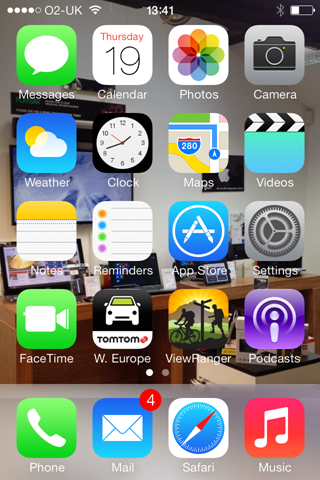
image

However my iPhone had started to lag slightly in the previous iOS version so I decided to use this new iOS as an excuse for a fresh install and completely wiped the iPhone and started from scratch. With a significant improvement in speed I started to explore iOS 7’s new features.

Control Centre
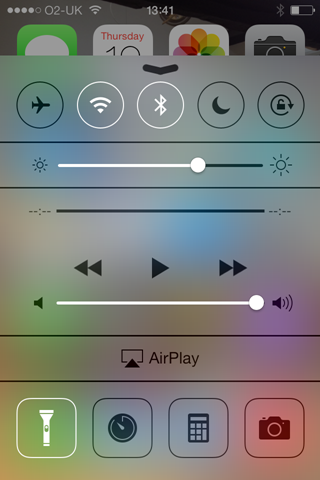
image

A swipe up from the bottom of any screen, including the lock screen, reveals the new Control Centre. You can now activate the LED flash as a torch, which is surprisingly handy. The calculator, camera and stopwatch apps are also easily available. And the brightness control is now conveniently placed.

General Interface

Search can now be accessed from any home screen by swiping down from the middle of the screen and application switching and closing is now animated and far easier to use. A double click of the home button lets you flick between open apps and swiping up an open app closes it rather satisfyingly.
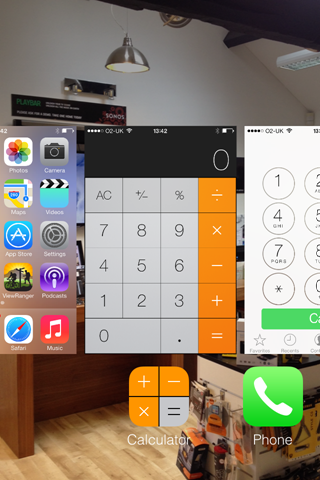
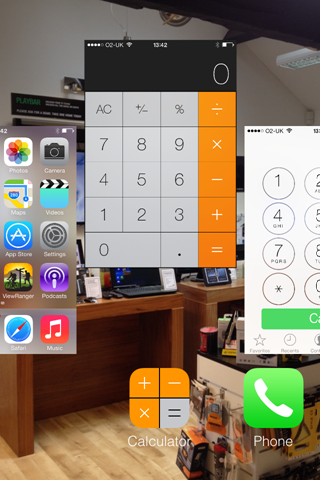
image

image

New Camera App

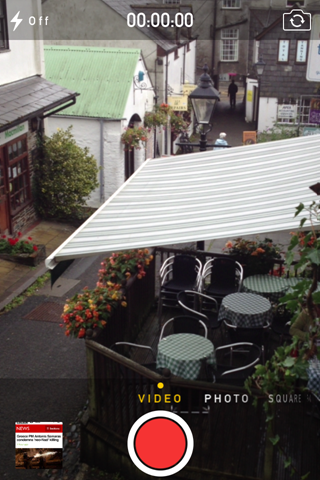
The camera app has been overhauled. You swipe across the screen to change between photo, video, panorama and a new square mode. And you have an effects mode which is not something I’d use but I know a lot of people will.
image

Overall the new app is welcome but won’t really change how I use the camera.

The photos app has been redone and looks quite confusing at first. You can now share videos through iCloud, but videos don’t sync via Photostream as I understood they would. This would have been handy – unfortunately you still need to use a cable to transfer videos to your computer or a third party app. I use Photo-sync which works very well between iPhones, iPads, Macs and PCs.

Airdrop

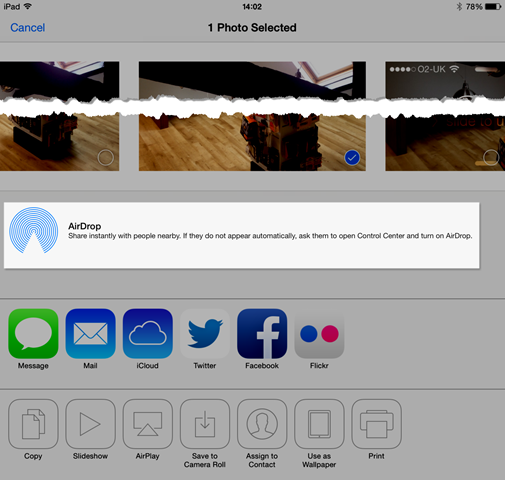
Which brings me onto Airdrop, another feature I was looking forward too. Airdrop allows easy sharing of files via WiFi or Bluetooth between iOS devices. However Apple have seen fit to only allow this option on iPhone 5, iPad 4 and newer devices. I can’t imagine why, especially since the iPhone 4s will still be available alongside the new iPhone 5s/c/.
 image

Safari

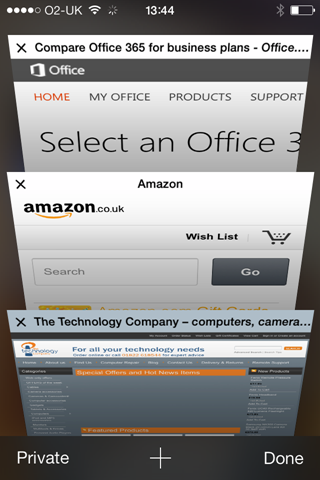
The web browser has been updated too and again feels a little confusing at first. There are some nice touches though, like the animated cascaded open tab view allowing you to flick between open pages:
image

iOS 7 in general tries to use as much of the screen as possible and apps like Safari hide icons as you flick through a page. This can be a little disconcerting since it’s not immediately obvious how you move to another page! Tapping on the address bar or flicking down a page off the screen again reveals the hidden icons.

Conclusion

Having spent a couple of days with the new OS now, my general impression is good. iOS was in need of a change – it was starting to look dated. It works very well on the new iPad 4 but does still lag a little on the 4s, even after the complete refresh. Good job I’m due an upgrade!

But I would exercise caution in upgrading older devices especially the iPhone 4 and the iPad 2.

A very nice added bonus of the update is devices activated after September 1st 2013 can download all of Apples’ productivity apps for free – worth over £30! You’ll get prompted to download Keynote, iMovie, iPhoto, Pages and Numbers. And then these will be available across all your iDevices.

Friday, 13 September 2013

Microsoft Office 2010 Starter Edition needing activation

Many version of Windows 7 came with this completely free edition of Office which was only limited on features but not time.

However an Windows update on Tuesday (10th September 2013) has caused users to be prompted to purchase the full version of Office when trying to open Word or Excel documents:

Activate office

Fortunately there is a simple solution, not involving parting with any money to Microsoft. You’ll need to uninstall Microsoft Office 2010. Click on the Start orb at the bottom left of the screen, and type add remove. Click on Add or remove programs as below:

add remove

Next click on Microsoft Office 2010 and uninstall:

uninstall program

You should then be able to run Word and Excel as before.

If you’re using Microsoft Office 2010 Starter Edition and have not yet been effected, this is the update you need to watch out for (KB2589275). So you could also un-tick the update before it causes any trouble. Or you could uninstall the update, but I prefer the above method.

Update to Microsoft Office 2010 (KB2589275) 32-bit Edition

Please let me know how you get on!

Wednesday, 11 September 2013

Syncing Google Calendar with your Android phone or tablet

By default, synching your calendar from your Android phone doesn’t always work as it should. Often calendar updates will only happen one way – from Google Calendar on your desktop to your phone or tablet, but not the other way around. To get them working both ways make sure you complete the following steps. Note that Android devices vary so the screenshots may not look exactly like yours –these are taken from an Asus Fonepad.

Open up the device’s calendar app and click on settings.

image

If you don’t already have your Gmail account here, you’ll need to add it. Then we need to select this account and enable it to be synched by checking the tick box:

SNAGHTML149f8a9e

image

image

Next click on this calendar as below:

image

Now when you add an event, make sure this same calendar is selected as below:

image

You’ll now find calendar events will sync both ways. Good luck!

Tuesday, 3 September 2013

Sharing bookmarks across all your devices with iCloud and troubleshooting

Setting up iCloud Bookmarks Synching

This is very handy feature using Apple's iCloud, but can be frustrating when it doesn't work as it should. I'll firstly go through how to enable the feature and then describe how to deal with any issues that can arise. Bookmarks sync works across iOS devices (iPhone and iPads), Macs and PCs. To enable the feature on your iPhone and iPad, simply slide the switch in Settings / iCloud to on:

IMG_4254 iphone enable icloud

On your Mac, select System Preferences / iCloud and tick Safari:

2013-09-02_22-52-57 macbook icloud enable

On your PC, you'll need to download the iCloud control panel from here:

http://support.apple.com/kb/dl1455

After installing, you're need to enable Bookmarks with Internet Explorer. If you have Safari installed, you'll have an option to sync with Safari bookmarks instead. With Safari installed, Reading Lists are also synched. Note that iCloud Tabs are only synched across Apple devices.

That's it - all your bookmarks should sync across all your devices.

Troubleshooting iCloud Bookmarks (Advanced)

This normally works fine, but synching across many devices with hundreds of bookmarks can get iCloud in a muddle. Duplicates can appear and you may have to resort to resetting your bookmarks across all devices. This is easier said than done since there is no way of explicitly removing the iCloud bookmarks.

This is the procedure I've found to work - and I've tried a few ways! Please remember, it's unlikely you'll run into any problems. I'm probably pushing this feature to its limits synching across 6 devices with bookmarks going back over 15 years!

Firstly switch off synching on your iPhone and iPad: as above but slide the switch to off. You'll be prompted to delete the bookmarks stored. Confirm this operation:

IMG_4253 iphone delete bookmarks icloud

Now turn off on your PC(s) too. Then delete all your favourites (bookmarks) too. For Internet Explorer:

Windows Key + R and type %userprofile%\favorites as below:

02-09-2013 21-00-29 delete favorites

Now select all folders and files and delete. Or copy to a temporary folder if you need a backup to restore at the end of this procedure. 

Finally on the Mac, again make a backup of your bookmarks if you're wanting to restore from them. Then with iCloud Safari sync still enabled, delete all your bookmarks (Show All Bookmarks and hold the delete key down is one way!). Wait for this to propagate through to iCloud - leave 15 minutes if possible. Then exit Safari and turn off iCloud sync as above and completely delete bookmarks by deleting the bookmarks.plist file as below. In Finder you'll need to hold down the alt key to see the hidden Library folder:

2013-09-02_21-19-58 delete plist bookmarks safari

Now enable iCloud Safari sync again and open Safari. Wait a while and check no bookmarks still left in iCloud don't reappear.

This next step is important if you’re using Windows 8. You need to turn off Internet Explorer syncing, which is part of your Microsoft login. This is not an issue if you logon on to a local account. Here’s how to switch it off:

SNAGHTML7982dda

Now restore your bookmarks and enable iCloud sync on your other devices. If you're not using a Mac, you'd complete this final step on the PC. But do it on one PC first.

Good luck and please let me know how you get on!

Friday, 7 December 2012

Gadget Show Live Christmas

The train just about made it to London with all the recent flooding causing havoc. Most of my fellow travellers were heading to Twickenham for what was to be the astonishing English defeat of New Zealand.

I was heading for the new Gadget Show Christmas exhibition at the Excel centre. Their annual show at the NEC obviously wasn't enough for true tech addicts. It's a smaller show but I found for the limited time I had, it was big enough!

I was keen to see the new Windows 8 and all its associated gadgets. Microsoft had the biggest stand at the show unsurprisingly, with their latest Surface tablet taking centre stage. They had the latest smartphones, hybrid laptops, ultrabooks and of course XBox all sporting some variant of Windows 8 and all with a reassuringly consistent feel.

Surface had a queue just to touch and feel it which must be very satisfying for Microsoft. These are the new tablets running Windows RT, a special version of Windows 8 designed to run on mobile devices. But it feels exactly the same as the full Windows 8 and runs very quickly with no delays flicking, scrolling or pinching! It comes with Microsoft Office 2013 which is a real bonus. Plus it will support many USB devices, so you can plug you USB memory stick in and continue working on that Word document you started on the laptop.


You will have seen all the Surface adverts with enthusiastic dancers attaching and the detaching the cover/keyboard. The tablet comes on its own from £399, or with a choice of two cover/keyboards. One thin keyboard (with no feedback but available in lots of colours). And one thicker keyboard in black with proper keys which would be my choice. The attachment mechanism is very nicely designed and the built in stand on the back of the tablet is well thought out. With this built in stand, proper keyboard and Microsoft Office, this really is a tablet that could comfortably replace your laptop in many situations.

Microsoft also had a number of interesting full Windows 8 hybrid laptop with flipping, swiveling and rotating screens, mostly with touch. I did find the range a little baffling and would like Microsoft to set some guidelines. Windows 8 does work a lot better with a touch screen or at the very least an advanced touchpad which supports the main touch gestures. However, some budget laptops have no touchscreen and limited touchpads which leaves you having to use the rather unintuitive mouse and keyboard controls.

The Asus Taichi had a double-sided screen which when closed acted as an (albeit fat) touchscreen tablet. Open it up and you had a standard laptop with no touch which I found myself contantly trying to touch!

The Windows Phone 8 smartphones were very appealing with their large bright and very responsive displays. Kids Corner is a nice feature that lets your children safely play with your phone with your choice of apps. But it doesn't stop it being slung across the room!

Moving on from the Microsoft stand and running out of time, I enjoyed a nice demonstration of a 3D printer from MakerBot. These are really coming down in price (£1500 + VAT) and I can see them being available at high street prices within 5 years.

I dashed around the rest of the show pausing to look at Sonos Wireless HiFi, Jacuzzis (!), far too many smartphone and tablet covers and loads of flying gadgets, before heading off home with hoards of drunken rugby fans.